Create and manage your projects
In Voxdub, each dub is a project (also called a workspace). This page explains how to create one and how to manage them all from the projects list.
Voxdub is a subscription studio at €12.99/month; every feature is included.
Create a project
Open the New project screen and add your video:
- Drag and drop a video file onto the import zone, or click to browse and pick one from your computer.
- Optionally set the video language.
- Optionally enable the AI helpers at import: Automatic subtitle detection and Translate to all languages.
- Click Create project to open it in the editor.
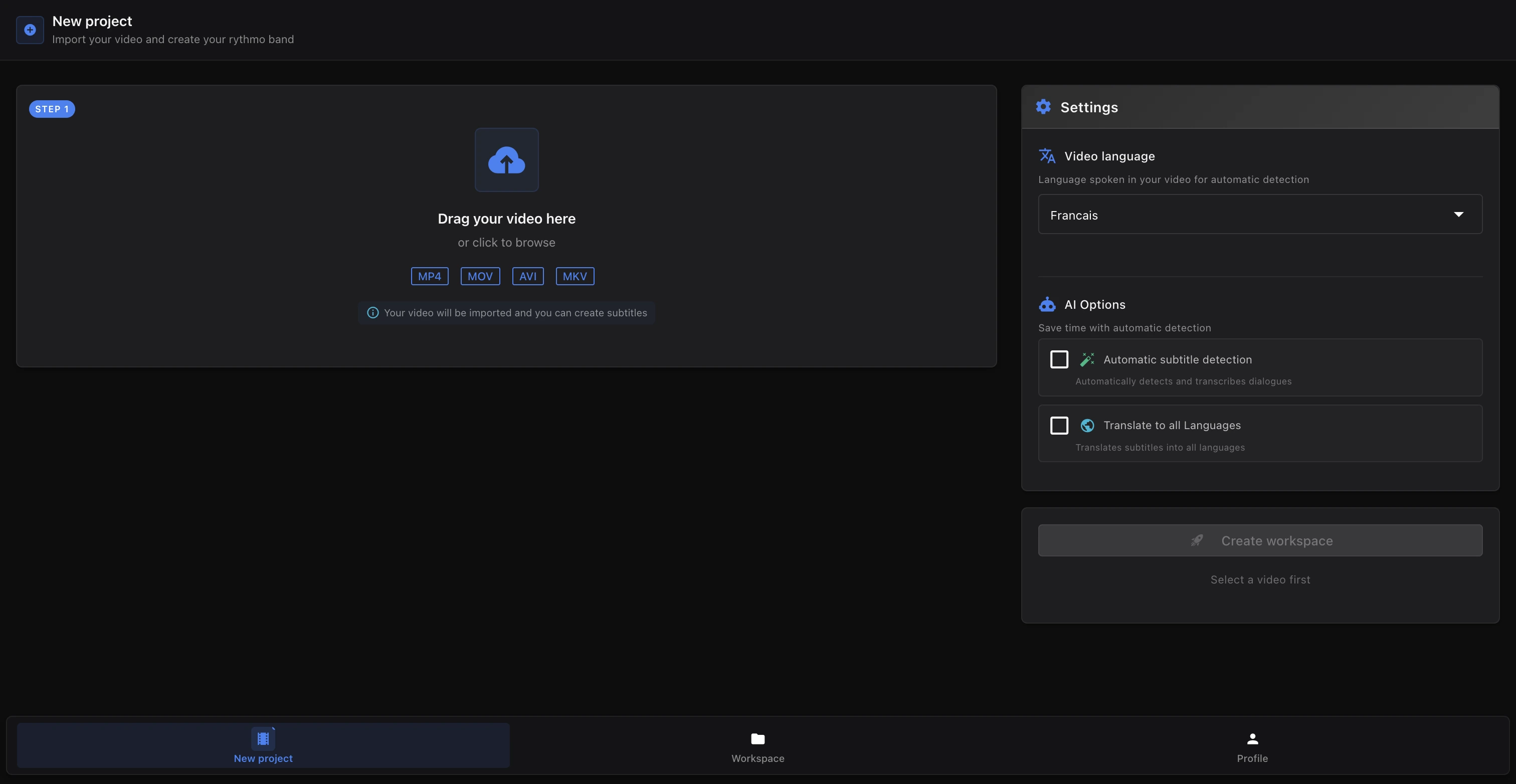
For details on the video step, see Import a video.
Your projects list
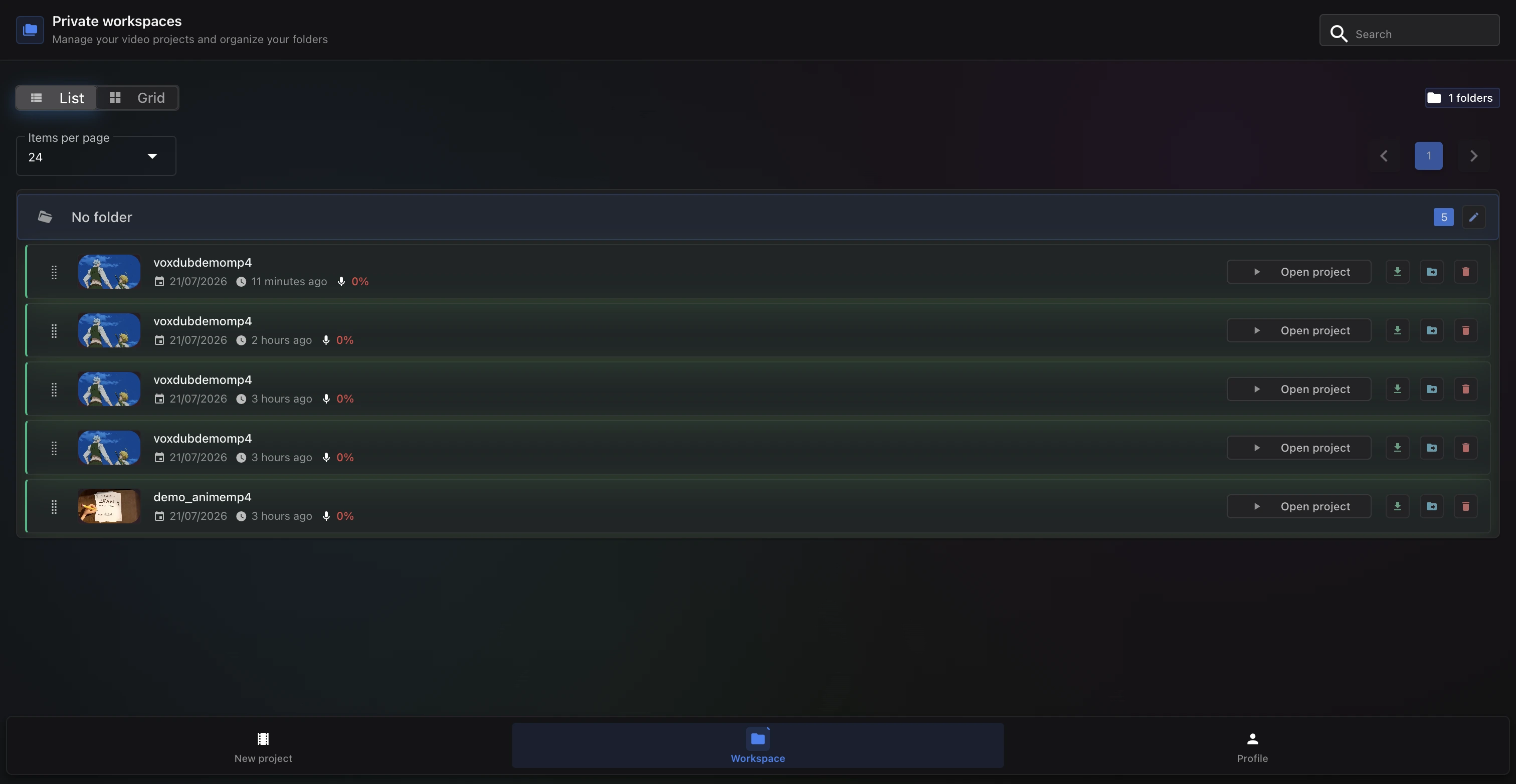
All your projects live in the projects list (labelled "My projects" / "Private workspaces"). From there you can:
- Search your projects by name.
- Switch between List and Grid view.
- Open a project (Open project), or open it by clicking its card.
Organize with folders
Projects can be grouped into folders:
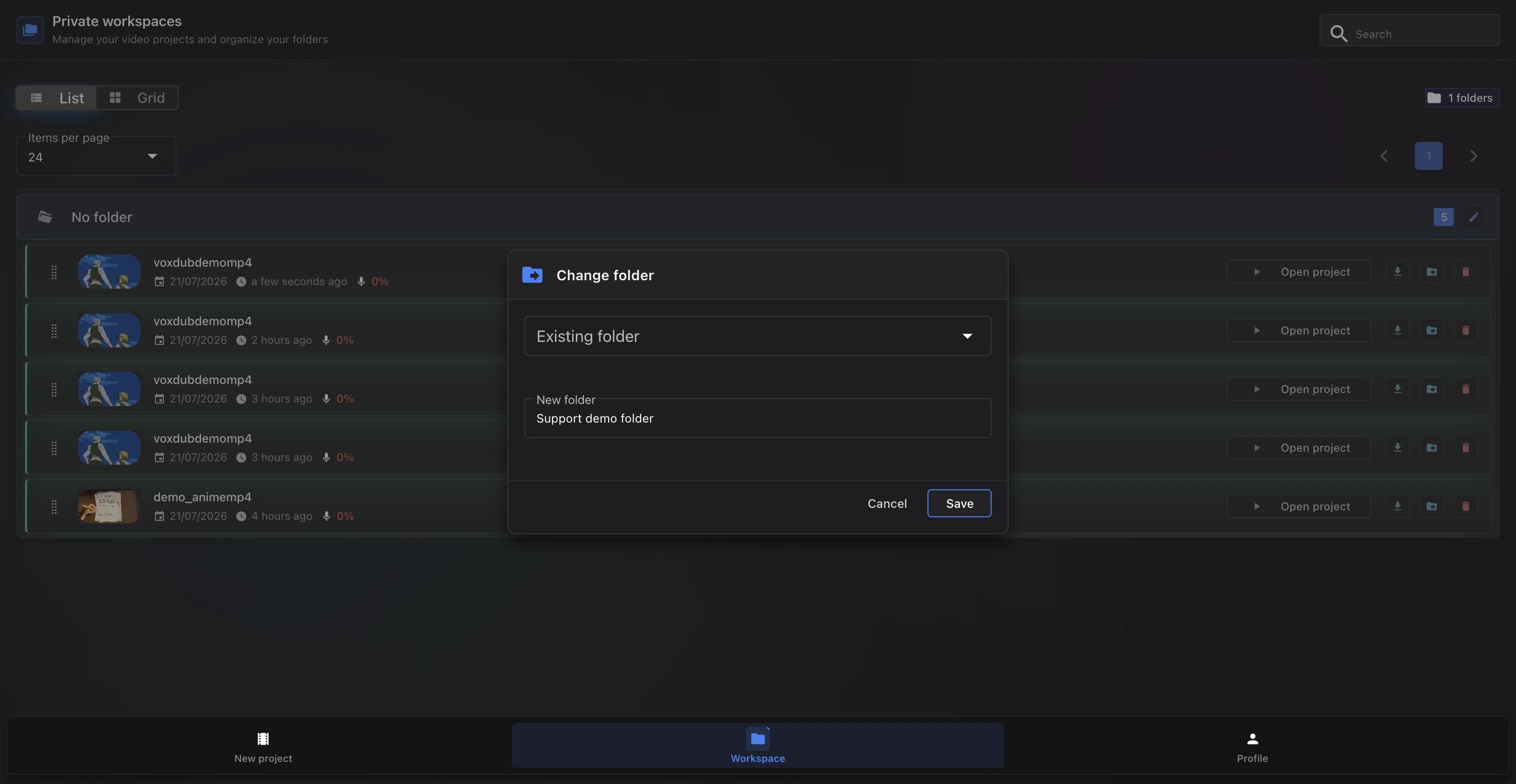
- Move a project to a folder (choose an existing folder or type a new folder name).
- Rename a folder.
- Projects without a folder appear under "No folder".
Export or delete a project
Each project card has two more actions:
- Export subtitles: export the project's lines directly from the list. See Export subtitles and DETX.
- Delete: permanently removes the project. This can't be undone, so delete with care.
Related articles
- Import a video — the video step in detail.
- Your first dub — go from a new project to an export.
Ready to dub your video?
Create an account and start your first project in minutes, right in your browser. 7-day free trial.
Try Voxdub for free