Remove the original voices
Sometimes you need the video without its original voices: to deliver a clean source that will be dubbed, or to burn a dub over a version that keeps the image and the ambience but drops the original dialogue. Voxdub does this with Replace video (without vocals).
All of these features are part of the €12.99/month subscription.
Where to find it
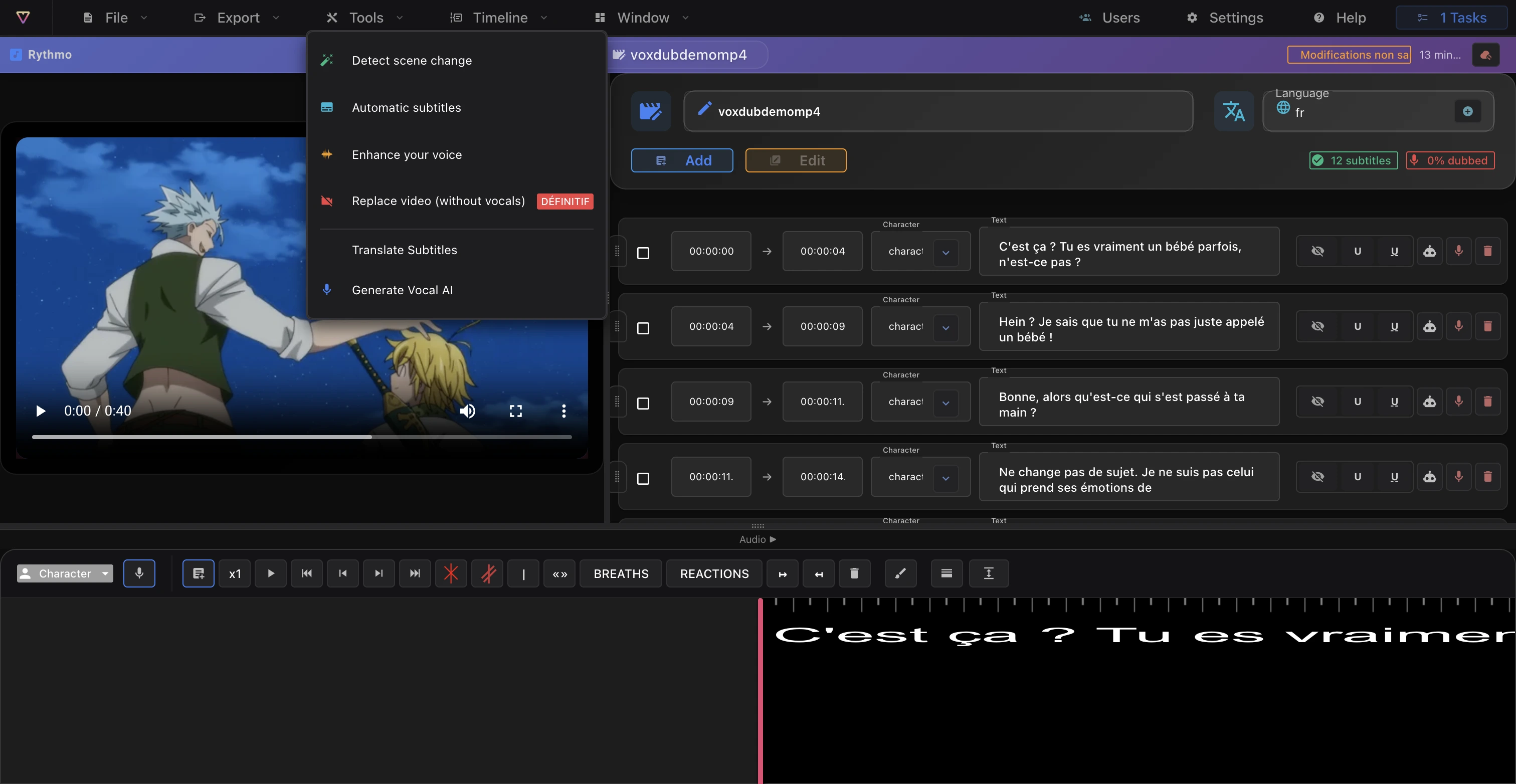
The tool is Replace video (without vocals) in the Tools menu.
How it works
Running it opens a short guided dialog with three steps:
- Information: it explains what will happen — the audio is extracted, the voices are isolated and removed, the audio is recompiled, and the video's audio is replaced.
- Confirmation: you confirm the operation. It runs as a background job, so it can take a little time (see Background jobs and emails).
- Processing: the job runs; when it finishes, the video's original voices are gone.
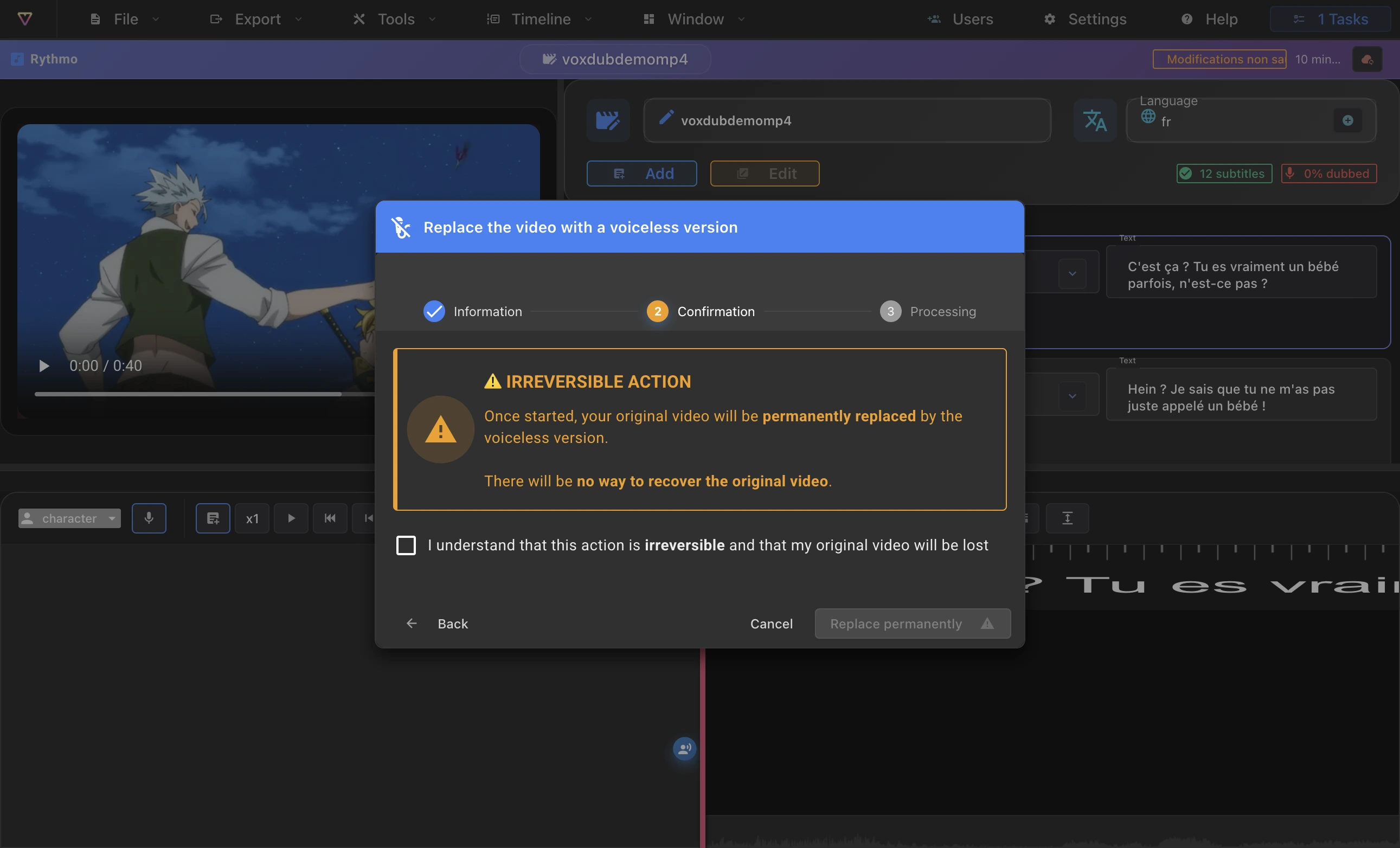
This operation is permanent for the project's video: it replaces the source audio with the voice-removed version. If you want to keep the original, export a copy of your project's files first (see Autosave and undo).
What it unlocks
Once the original voices are removed, the video export offers a voiceless audio option, so you can render the dub over a version without the original dialogue. See Export a video.
Related articles
- Export a video — the voiceless export variant.
- The rythmo band tools — the Tools menu.
- Background jobs and emails — tracking the job.
Ready to dub your video?
Create an account and start your first project in minutes, right in your browser. 7-day free trial.
Try Voxdub for free