Editor display settings
The Settings dialog inside the editor controls how the rythmo band and its text look. Open it from the editor menu (Settings, the gear icon). It has three tabs: Text, Appearance and Characters. Every change previews live on the band.
All of these settings are part of the €12.99/month subscription.
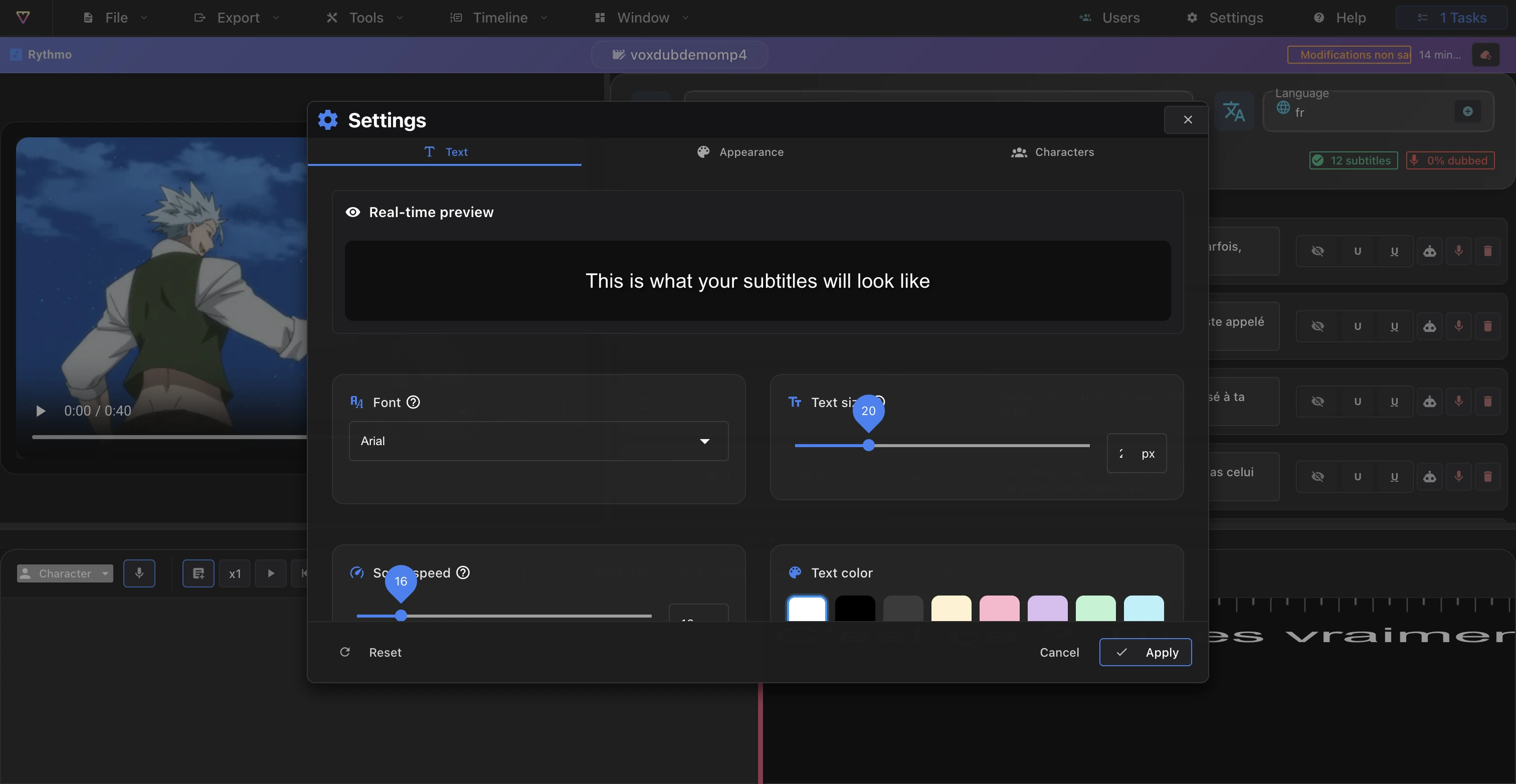
Text tab
- Font: choose the typeface used for the band text.
- Text size: a slider from 10 to 50 px.
- Scroll speed: a slider from 10 to 50 that sets how fast the band scrolls under the playhead (it also stretches how the text is spaced along the timeline).
- Text color: pick from the color grid.
- Subtitles language: choose which language of the band is displayed.
- A real-time preview at the top shows your font, size and color as you change them.
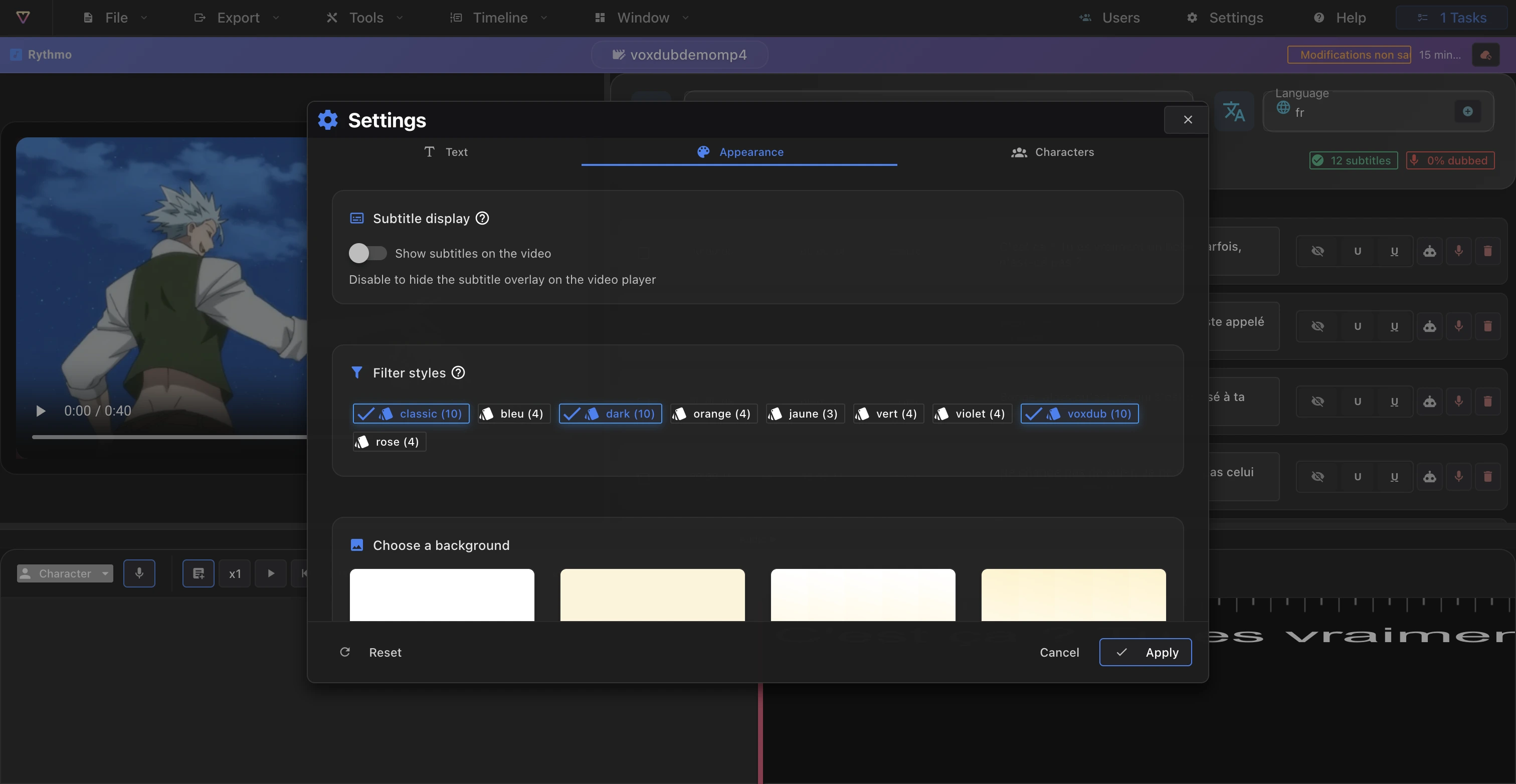
Appearance tab
- Show subtitles on the video: toggle the subtitle overlay on the video preview on or off.
- Background styles: filter and pick a background template for the band area.
Characters tab
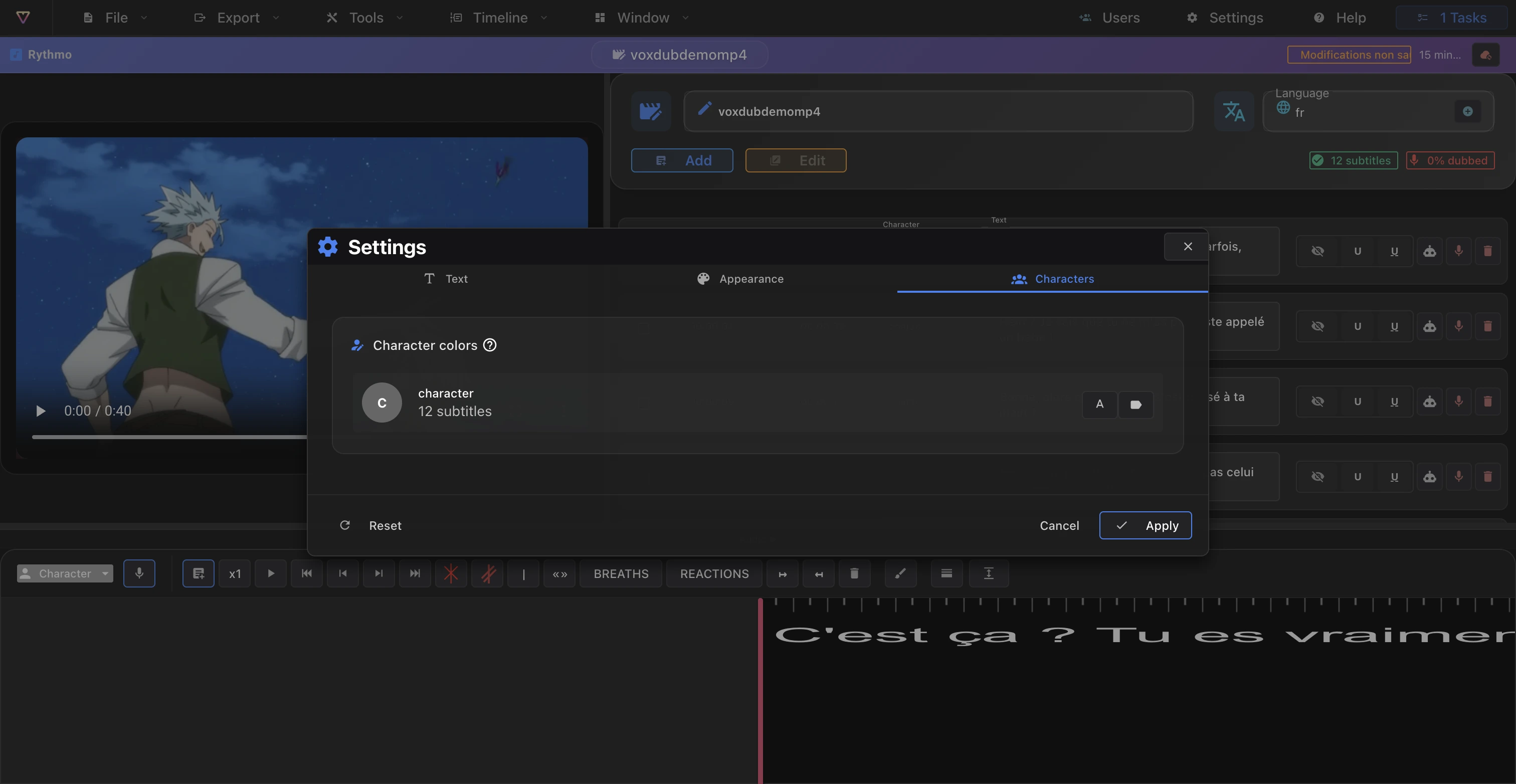
- For each character in your project, set a text color and a badge color.
- These colors are what tell the actors apart at a glance on the band. See Characters.
Band height
The height of the rythmo band itself is set from the band toolbar (not this dialog): a height menu offers 100, 150, 200, 250 or 300 px. Use a taller band when you place lines on several rows.
Related articles
- The rythmo band tools — every tool on the band toolbar.
- Characters — assign characters that these colors apply to.
Ready to dub your video?
Create an account and start your first project in minutes, right in your browser. 7-day free trial.
Try Voxdub for free