Playback speed and speaking rate
Two different speed controls help you work precisely: the playback speed of the video, and the speaking rate of a line's audio. They do different things.
All of these features are part of the €12.99/month subscription.
Playback speed
The playback speed changes how fast the video plays back while you edit — handy for lining up a tricky passage or reviewing a fast exchange.
- The speed button on the rythmo band toolbar (shown as x1, x1.25, …) cycles through the available speeds each time you click it: 0.2, 0.5, 0.75, 1, 1.25, 1.5, 2.
- The same control is in the Timeline menu (Speed).
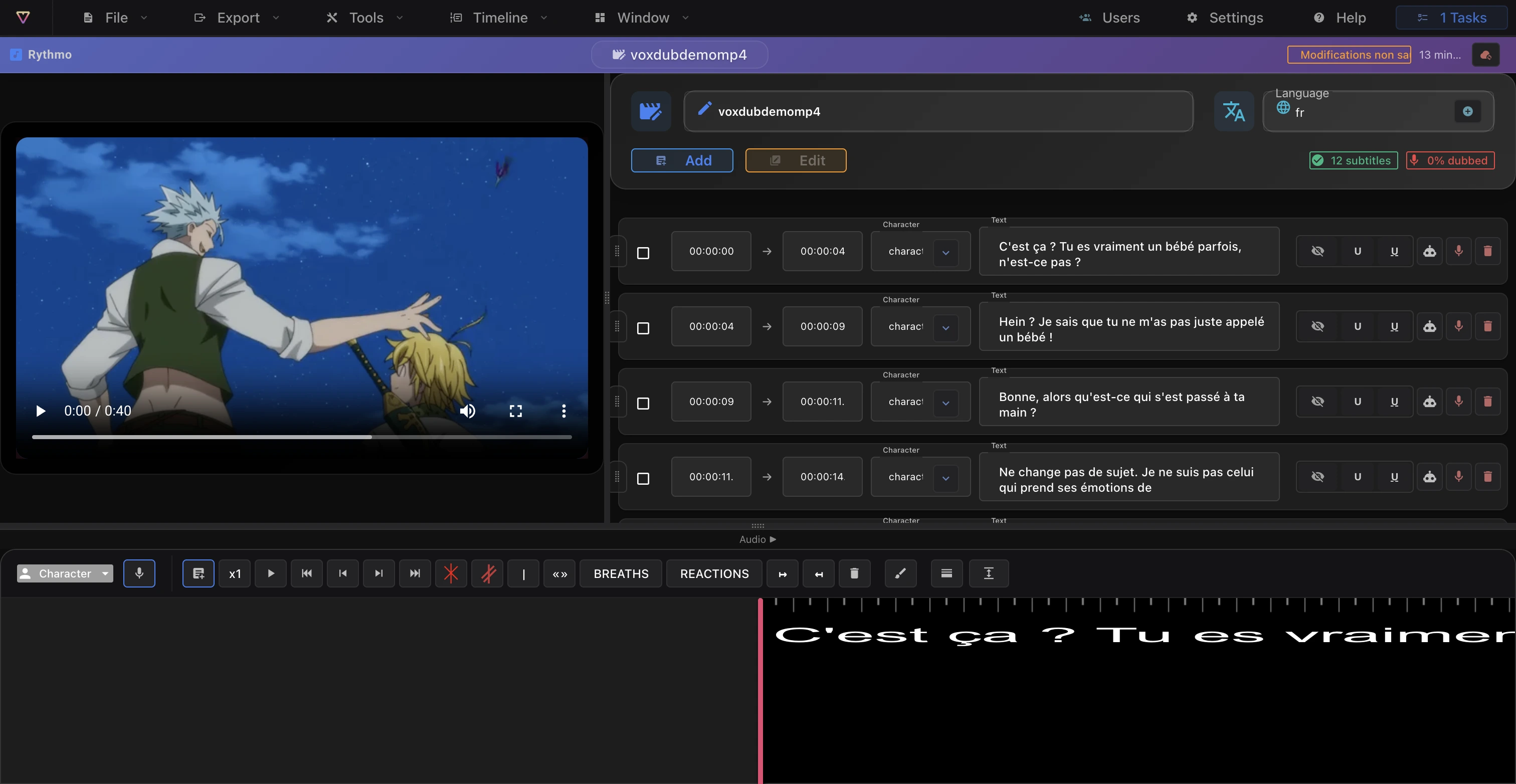
This only affects playback in the editor; it doesn't change your exported video.
Speaking rate (per line)
The speaking rate adjusts the pace of a line's audio — the generated AI voice or your recorded take — so it fits the line's duration.
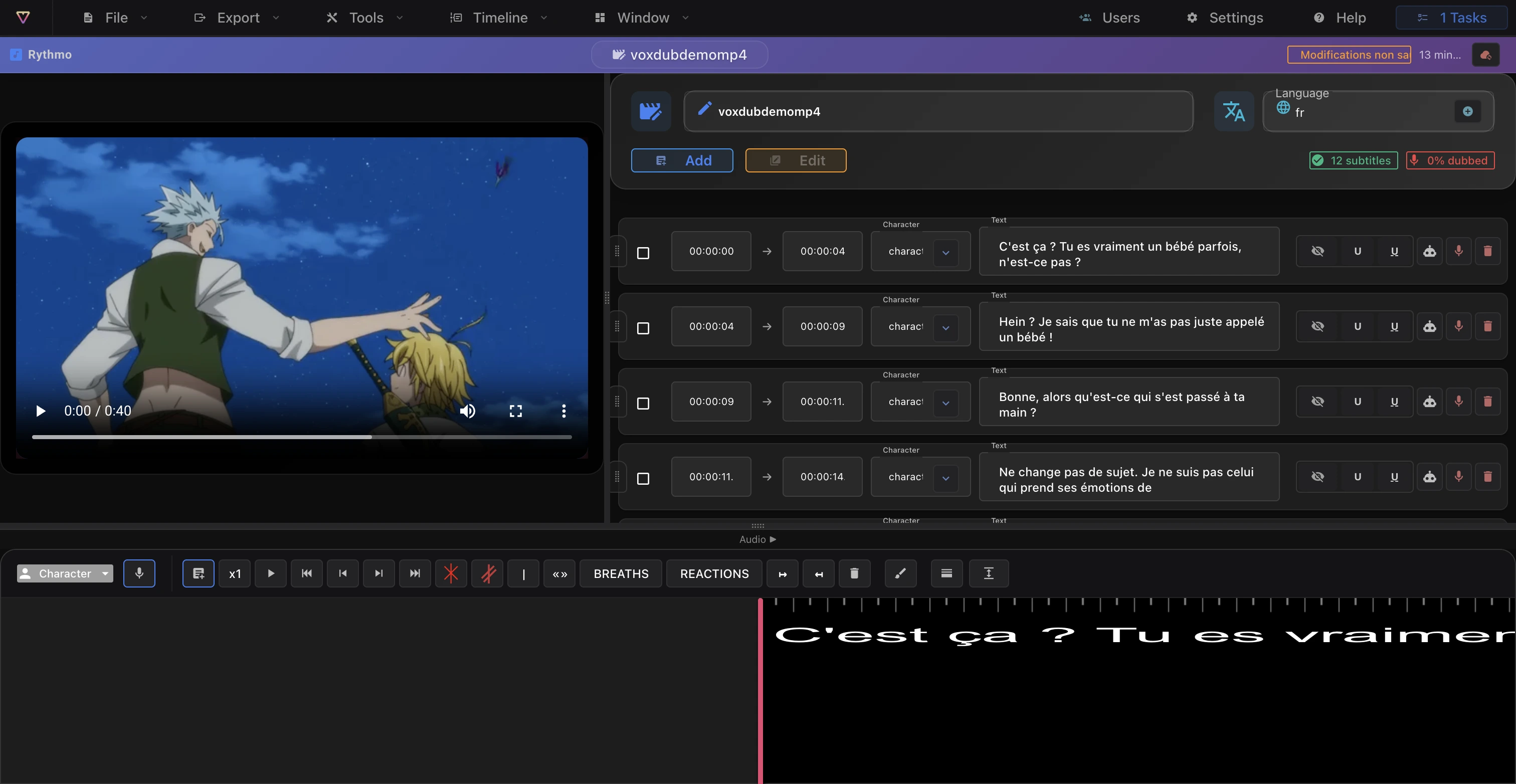
- On a line in the script panel, a speed-rate slider runs from 0.8× to 4×.
- Raise it to fit more into a short line, lower it for a slower delivery.
Which one do I need?
- Reviewing or syncing the picture → playback speed (toolbar / Timeline menu).
- Making a voice fit its line → speaking rate (the per-line slider).
Related articles
- Generate an AI voice — set the speaking rate before or after generating.
- Record your voice — adjust a recorded take.
- Keyboard shortcuts — playback navigation.
Ready to dub your video?
Create an account and start your first project in minutes, right in your browser. 7-day free trial.
Try Voxdub for free